
If you want to try Hunyuan AI without paying first, Videoinu is a practical place to begin. New users can start with free credits, and Hunyuan AI is available inside Videoinu’s regular creation tools.
Videoinu describes Hunyuan AI as a model for structured, reliable videos with strong semantic understanding, clear scene logic, and stable visual output.
That makes Hunyuan AI a good fit when you care more about clarity than flashy effects. Instead of pushing chaotic motion or dramatic style first, it is better used for videos that need understandable progression, organized scenes, and prompt accuracy. Videoinu also connects Hunyuan AI to tutorials, presentations, explainers, and narration-driven content, which gives a good sense of where it fits best.
What Hunyuan AI Is Good For
Hunyuan AI works especially well for videos that need structure. Videoinu highlights semantic clarity, logical scene progression, and reliable output, and it repeatedly frames the model as useful for explanation-focused or narration-led videos rather than purely flashy short clips.
In practice, that makes Hunyuan AI useful for:
- explainer-style visuals
- educational clips
- presentation-friendly scenes
- concept videos with clear progression
- narrative setups that may later grow into longer sequences
That last use case matters because some short clips stay simple, but others turn into something bigger. When that happens, Videoinu’s tool for turning a written story into connected scenes is a natural next step, since its AI Story Video Generator is built around scene sequencing, continuity, and narrative flow instead of isolated clips.
How to Use Hunyuan AI on Videoinu
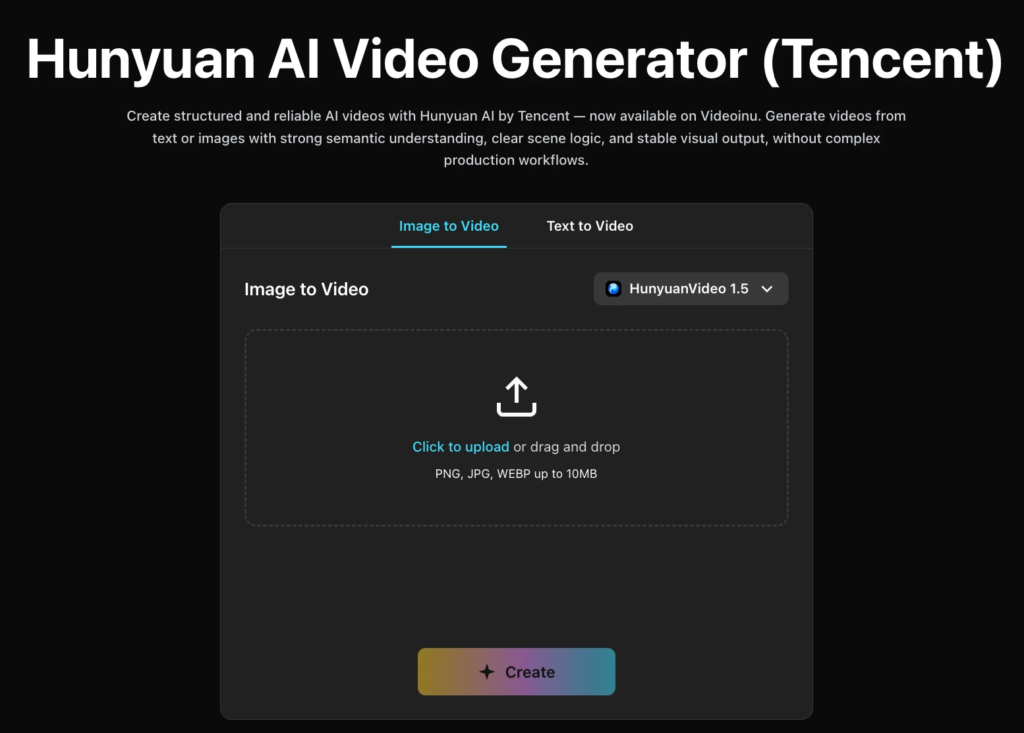
Step 1: Sign Up for Videoinu
Start by creating a Videoinu account. Once you are inside, you can use the platform’s normal video tools and try Hunyuan AI through the same broader workflow used for other models. Videoinu presents Hunyuan AI as part of its main video model lineup and positions it as a free-start option on the model page.
Step 2: Open a Video Tool and Choose Hunyuan AI
After signing in, open one of Videoinu’s creation tools and choose Hunyuan AI as the model. Videoinu makes both image input and text input available on the Hunyuan AI page, so you can start from either a prompt or an uploaded visual depending on what you already have.
If you only have an idea in your head, text is usually the easiest place to begin. If you already have a strong image or visual reference, image input can help keep the output more anchored. That follows the two main creation paths shown on the Hunyuan AI page.
Step 3: Start with a Clear Prompt
If you are using text, keep the first prompt simple and structured.
For example:
A teacher walks into a quiet classroom at sunrise, soft light through the windows, calm camera movement, realistic tone.
This kind of prompt works well with Hunyuan AI because the model performs best with clear and structured descriptions. Videoinu’s own how-to guidance for Hunyuan AI says to refine prompts around scene order, subject focus, and logical flow.
Step 4: Focus on Structure and Meaning
This is the step that matters most with Hunyuan AI. Instead of asking only what the scene looks like, think about how the scene works.
It helps to define:
- what the subject is doing
- what the environment adds to the scene
- how the action progresses
- whether the tone should feel educational, calm, or informative
That matches Videoinu’s description of Hunyuan AI as a model for clarity, coherence, and understandable progression rather than visually random clips.
Step 5: Generate, Review, and Improve
Generate the first version and treat it like a draft. Watch it and check whether the output feels organized, whether the scene follows the prompt clearly, and whether the progression makes sense from start to finish. Videoinu’s own Hunyuan AI workflow is simple: choose image or text input, refine for structure and meaning, then generate and download.
If the result is close but not right, improve one thing at a time. Tighten the prompt. Simplify the action. Make the purpose of the scene easier to read. With Hunyuan AI, small prompt changes usually help more than rewriting everything.
Step 6: Expand It Into Story-Based Content if the Idea Grows
Some Hunyuan AI clips work well as single structured scenes. Others start to feel like part of something bigger. That is where Videoinu’s story-to-video workflow for connected scenes becomes useful. The AI Story Video Generator is built for writing a story or script, defining flow and visual style, and then generating a sequence of scenes with continuity.
That makes it a natural next step when a short Hunyuan AI scene starts to feel like the opening of a larger explainer, lesson, or story. Videoinu explicitly distinguishes this tool from regular text-to-video by saying text-to-video focuses on single clips, while AI Story Video Generator emphasizes scene sequencing and narrative flow.
Why Videoinu Is a Good Place to Try Hunyuan AI
One reason is simplicity. Hunyuan AI fits into the same general creation flow as other models on Videoinu, so you do not need a separate setup just to test it. Another reason is fit: Hunyuan AI’s structure-first output works well inside a platform that already supports organized, multi-scene video creation.
That makes Videoinu a useful starting point for creators who want to test Hunyuan AI in a practical way. You can begin with one short, structured clip, then move into broader story-based creation later if the idea needs more than a single scene.
Tips for Better Hunyuan AI Results
Start with one clear scene. Hunyuan AI tends to work better when the prompt has a readable structure and a clear goal. Videoinu’s guidance explicitly says the model performs best with clear and structured descriptions.
Use it for scenes that need clarity. If the point of the clip is to explain, demonstrate, or guide the viewer through an idea, Hunyuan AI is a strong fit. Videoinu directly connects it to education, presentations, and informative content.
Move into story workflows only when the idea needs it. Not every Hunyuan AI clip has to become a story video, but when it starts to feel like one scene in a larger sequence, Videoinu’s connected-scene workflow becomes a much better fit.
Final Thoughts
The easiest way to use Hunyuan AI for free on Videoinu is to sign up, choose Hunyuan AI inside a video tool, and start with a clear prompt that has structure and purpose. Hunyuan AI is especially useful when you care about logical progression, prompt clarity, and scene coherence. And if the idea grows beyond one short clip, Videoinu gives you a natural path into longer story-based creation as well.
FAQs
Can I use Hunyuan AI for free on Videoinu?
Yes. Videoinu presents Hunyuan AI as a free-start option on the model page and includes it in its normal creation workflow.
What is Hunyuan AI best for?
Hunyuan AI is especially good for structured AI videos with strong semantic meaning and logical scene progression. Videoinu also connects it to education, presentations, and informative content.
Is Hunyuan AI better for educational or informative videos?
Yes. That is one of the clearest fits on Videoinu, which directly describes Hunyuan AI as suitable for education, presentations, and informative content.
Can I start with a simple prompt?
Yes. Hunyuan AI works well with prompt-led generation, and Videoinu’s own guide says it performs best with clear and structured descriptions.
Can a Hunyuan AI clip become part of a longer story?
Yes. A short Hunyuan AI clip can work as a starting scene, and Videoinu’s AI Story Video Generator is designed for expanding written ideas into connected multi-scene videos.